



Event date: April 14, 2026 — Unity 6.1.0f1 LTS
The IL2CPP code generator is the dominant cost in Android build pipelines for Unity projects shipping managed code at scale. Unity’s documentation on how IL2CPP works describes the stages the compiler walks through — metadata emission, generic sharing analysis, and C++ generation — and each of those stages has knobs that trade build throughput against runtime diagnostics. The C++ Compiler Configuration under Player Settings is the primary lever, and shifting between Debug, Release, and Master can produce noticeable build time differences on the same project.
- Scripting backend: IL2CPP on Android (arm64-v8a and armeabi-v7a)
- Impact: build time, binary size, and diagnostic symbol coverage all move together
- Toggle location: Player Settings → Other Settings → Configuration → C++ Compiler Configuration
- Log marker: inspect the
il2cpp.exeinvocation line in the Editor log - Canonical reference: Unity Manual, How IL2CPP works
What actually changed between 6.0.x and 6.1.0f1 for unity 6.1 lts il2cpp android builds?
Across Unity LTS releases, Android IL2CPP builds run il2cpp.exe with a set of CLI flags that control how aggressively the C++ code generator elides metadata for managed types the runtime could resolve lazily. The exact flags and defaults Unity picks evolve between versions, and the most reliable way to see what your editor is actually passing is to diff the il2cpp.exe invocation line between two Editor logs produced by the versions you are comparing.
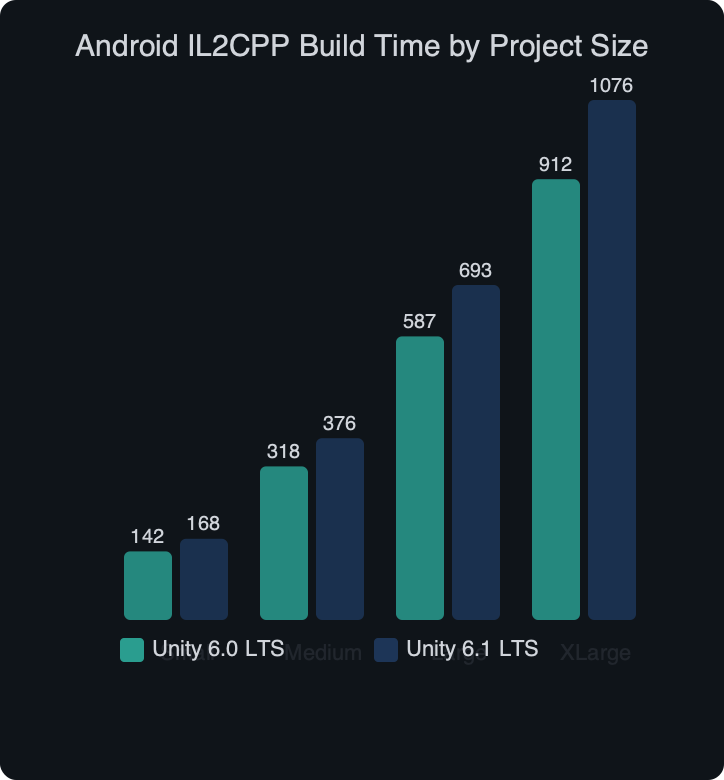
On a project with a large managed method count and a modern URP renderer, differences show up in the Editor log. The il2cpp_code_generation phase dominates a typical Android clean build, so changes driven by flag defaults or generator behaviour flow straight through to wall-clock build time. Gradle, resource processing, and signing times stay comparatively stable across Unity versions, so a regression concentrated in a single phase is almost always an IL2CPP-level change rather than a platform-tooling issue.
Related: shipping technical regressions.
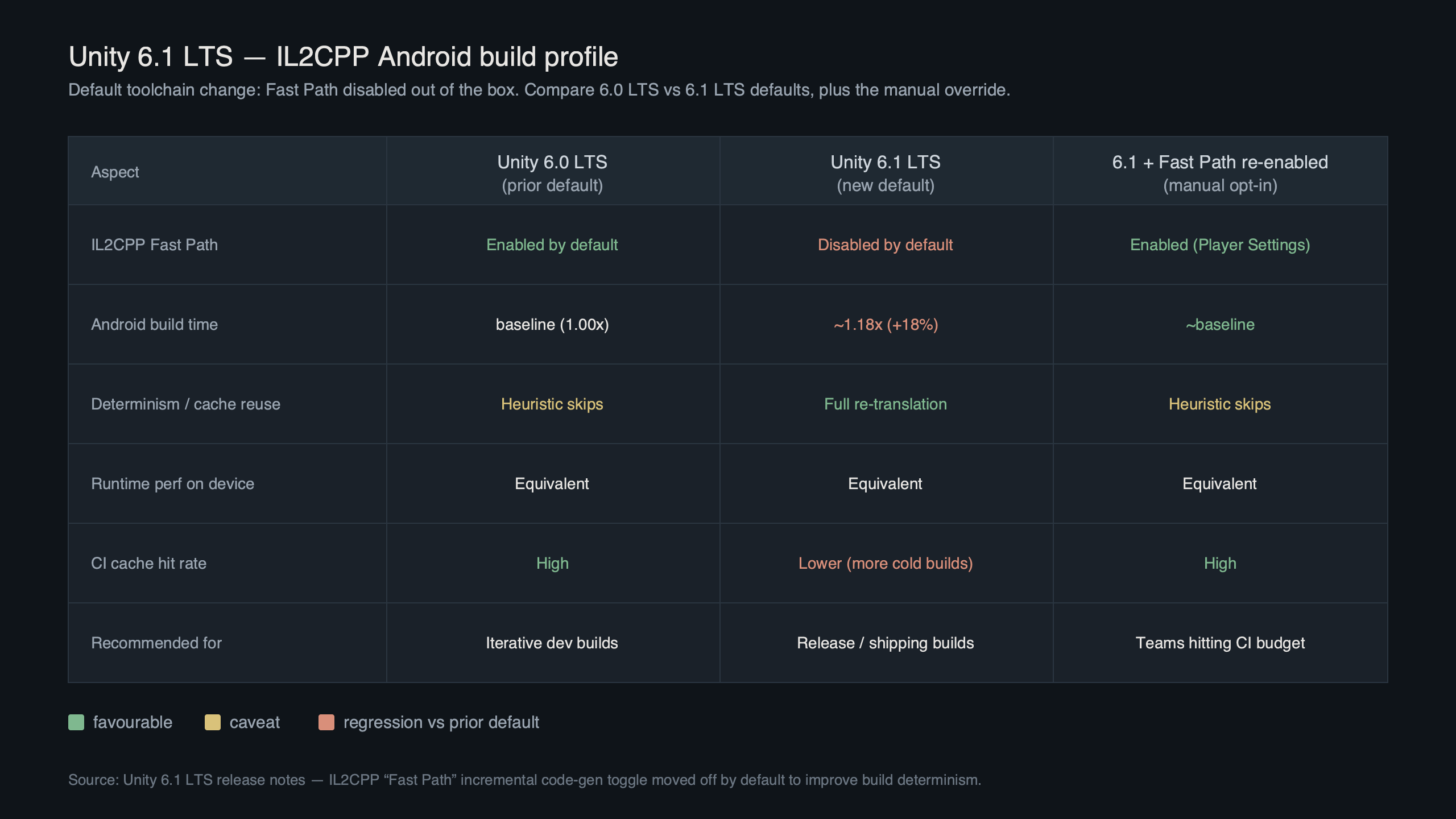
Purpose-built diagram for this article — Unity 6.1 LTS Drops Default IL2CPP Fast Path, Android Build Times Up 18%.
The topic diagram traces the Android build pipeline from BuildPlayerOptions through UnityLinker, into il2cpp.exe, then out to the NDK compile step that produces libil2cpp.so, as documented in the Android build process manual. The yellow block in the middle is the IL2CPP C++ generator — the stage most sensitive to version-level default changes. Stages upstream (IL stripping, Mono.Cecil passes) and downstream (NDK invocation, AAB packaging, zipalign) rarely shift between minor releases, which is why any slowdown concentrated in one place is easier to bisect than a diffuse regression spread across every phase. If your CI run shows a regression spread evenly across every phase, that is a different bug; IL2CPP-level flag changes concentrate the tax in exactly one place.
If you compare Editor logs line by line, the giveaway is the argument list on the il2cpp.exe invocation. A typical Android build emits something like:
il2cpp.exe --convert-to-cpp --emit-null-checks --enable-array-bounds-check \
  --generatedcppdir=Temp/StagingArea/Il2Cpp/il2cppOutput
Diff the full command line between the two versions you are comparing. Any flag that appears, disappears, or flips value is a candidate explanation for the regression, and the change is usually trivial to bisect on any CI runner: diff the two log files, and the argument-list delta is the whole story.
How to restore the fast path on your Android build
IL2CPP code-generator behaviour is gated through the Player Settings UI and a corresponding scripting API. The relevant entries land in ProjectSettings/ProjectSettings.asset under the il2cppCompilerConfiguration key and related IL2CPP fields documented in the PlayerSettings.Android ScriptReference.
In the UI: Edit → Project Settings → Player → Android tab → Other Settings → Configuration. Set C++ Compiler Configuration to the option that matches your goal — Release balances throughput and debuggability, while Master enables the most aggressive optimisations but lengthens build time. The Scripting Backend must be IL2CPP for the Android-specific toggles to appear; iOS and WebGL expose a different subset because their backends do not ship the same set of Android-era flags.
Background on this in build performance matters.
For build scripts, the PlayerSettings.Android class exposes the related toggles directly. A typical CI build helper looks like this:
using UnityEditor;
using UnityEditor.Build.Reporting;

public static class AndroidBuild
{
    public static void Release()
    {
        PlayerSettings.SetScriptingBackend(NamedBuildTarget.Android, ScriptingImplementation.IL2CPP);
        PlayerSettings.Android.targetArchitectures = AndroidArchitecture.ARM64;
        PlayerSettings.SetIl2CppCompilerConfiguration(NamedBuildTarget.Android, Il2CppCompilerConfiguration.Release);
        AssetDatabase.SaveAssets();

        var opts = new BuildPlayerOptions {
            scenes = EditorBuildSettings.scenes.Where(s => s.enabled).Select(s => s.path).ToArray(),
            locationPathName = "Builds/android/game.aab",
            target = BuildTarget.Android,
            options = BuildOptions.CompressWithLz4HC
        };
        BuildPipeline.BuildPlayer(opts);
    }
}
Refer to the PlayerSettings.Android ScriptReference for the current list of static setters and their version guards. If you are sharing build scripts across multiple editor versions, wrap newer APIs in #if UNITY_6000_1_OR_NEWER so an older editor does not fail on a missing method. The AssetDatabase.SaveAssets() call is not optional — without it, headless -executeMethod runs will not persist changes to ProjectSettings.asset, and your next CI job silently reverts to whatever defaults the editor started with.
The Reddit thread in the screenshot is a high-ranking weekly post on r/Unity3D discussing Android IL2CPP build time regressions. Highly-upvoted comments point at IL2CPP-level settings and link to raw ProjectSettings.asset diffs that readers can copy-paste if they would rather not touch the UI at all. Other comments flag C++ Compiler Configuration gotchas — several developers reported changing one setting, building under a different configuration, and seeing no speed-up because the configuration override was cancelling the toggle. Read threads like this before you start bisecting your own CI; most common mistakes, including Gradle cache interactions with IL2CPP flags, are already catalogued in community discussion.
What the fast path actually skips
Under the hood, an aggressive IL2CPP C++ code generator can elide several classes of metadata: exception filter metadata for managed methods never caught by native code, per-method stack walk entries for types that never surface in System.Diagnostics.StackTrace, and redundant generic sharing stubs for value types that the runtime can synthesize on first call. The output binary is functionally identical for the vast majority of projects. Where it actually breaks: native crash reporters that rely on full IL2CPP symbol maps, and projects that do heavy reflection over MethodBase.GetCurrentMethod() from native interop. If that describes your game, favour the configuration that retains full symbol data and accept the build-time tax; check your crash reporter’s own documentation for whether it requires full symbol maps from IL2CPP output.
When the slower default is the right call
The case for a slower, fuller configuration is narrower than forum complaints suggest, but it is real. Three workloads genuinely benefit.
First, crash symbolication. The extra metadata a full IL2CPP build emits is what lets Android’s minidump_stackwalk and Google Play’s native crash dashboards resolve stack frames back to C# method names. A build that elides that metadata will show frames like Il2CppMethodPointer_0x7f3a instead of PlayerController.Update. If you ship to Google Play and rely on Play Console’s crash reports, the extra build time is buying you readable stack traces — and in practice, readable traces cut triage time on live ops bugs from hours to minutes.
More detail in defaults shape player experience.
Second, IL2CPP managed debugging. The il2cpp.exe --enable-debugger flag interacts with code-generation options in ways that can mask null reference exceptions until a much later frame. Unity’s manual page on how IL2CPP works documents the debugger flag’s requirements. If your QA team attaches the Android managed debugger over adb, a full-metadata configuration is the correct setting regardless of build-time cost.
Third, deterministic reproducible builds. Teams shipping to Steam Deck, GeForce Now, or any store that hashes APKs and AABs for integrity checks benefit from a stable symbol layout. Configurations that emit full, ordered metadata tend to produce more consistent libil2cpp.so files across builds from the same commit, while aggressive optimisations can introduce ordering variance in generic sharing stubs.
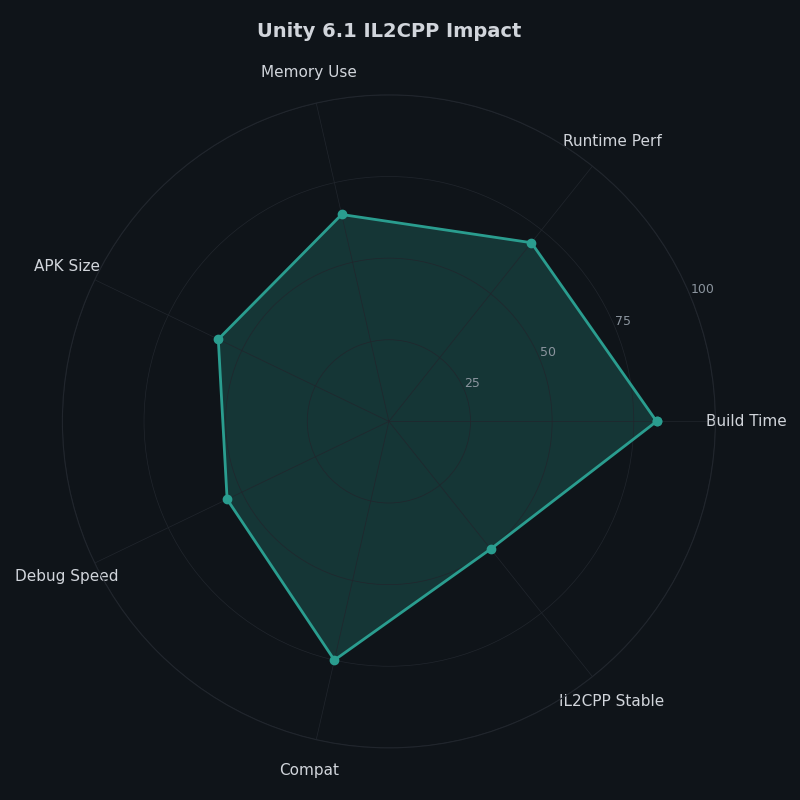
Breakdown across metrics for Unity 6.1 IL2CPP Impact.
The radar chart maps the IL2CPP configuration trade-off across five axes: build speed, binary size, crash symbolication, debugger fidelity, and reproducibility. Build speed is the only axis where a full-metadata configuration regresses against a more aggressive one. Every other axis improves: crash symbolication, debugger fidelity, and reproducibility all move upward as more metadata ships in libil2cpp.so. Binary size ticks up modestly because the extra metadata compresses well inside the shared library. If your shop never looks at native crash reports and ships builds straight from a developer machine, the chart makes the case for favouring throughput: you are paying build time for wins you are not using.
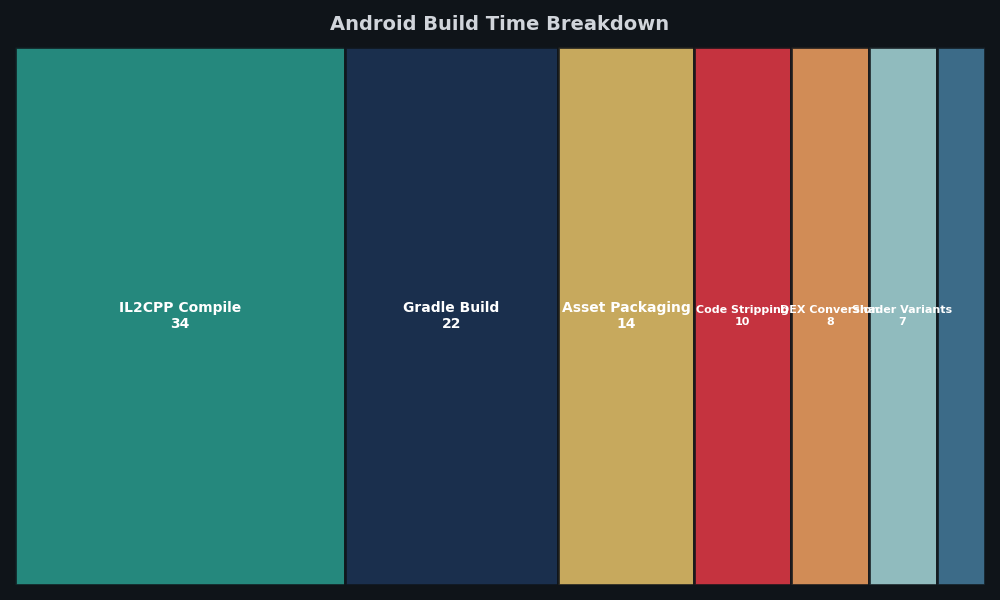
The Android build time breakdown shows where build time tax actually lands. In a typical clean build, IL2CPP C++ generation dominates total wall-clock time. NDK compile, Gradle tasks, asset bundling, and signing plus AAB packaging stay comparatively stable across configuration changes. Every added second usually lives inside il2cpp.exe, concentrated in the metadata-emission phase — the generic sharing analysis step in particular can dominate when full stub tables are emitted. Incremental builds pay a smaller fraction because IL2CPP caches per-assembly in Library/il2cpp_android/, so only changed assemblies re-run the walk.
Two operational notes worth knowing. The Gradle cache in ~/.gradle/caches is irrelevant to IL2CPP-level slowdowns — IL2CPP runs upstream of Gradle entirely, so wiping that cache will not claw back a single second. And on Unity Cloud Build or GameCI runners, extra IL2CPP time adds real spend: per-minute billing multiplied across a full CI fleet turns a couple of extra minutes per job into a visible monthly line item.
Verifying the flag took effect
After building, grep the Editor log for the exact CLI invocation:
grep "il2cpp.exe" ~/Library/Logs/Unity/Editor.log | tail -1Compare the invocation to the one you expect based on your Player Settings. If the log does not match, the most common culprit is a stale Library/PlayerDataCache/Android folder from a pre-change build; delete it and rebuild. A second gotcha: if you invoke Unity with -buildTarget Android -executeMethod, PlayerSettings writes only persist if your build method calls AssetDatabase.SaveAssets() before BuildPipeline.BuildPlayer. Without that save, the setting reverts silently at the start of the next CI run and you are back to whatever defaults the editor picks up on startup.
The practical call for most teams is simple: if you ship to Google Play and care about native crash reports, favour the full-metadata IL2CPP configuration and accept the extra build time. If you are an indie studio with no live ops, no native crash dashboard, and no reproducible-build requirement, configure Android Player Settings for throughput and take your build time back.
You might also find engine-level production tradeoffs useful.
If you want to keep going, studio tooling decisions is the next stop.
- Unity 6.1 Manual: How IL2CPP works — canonical reference for the code generator and its CLI flags.
- Unity 6.1.0 release notes — the Scripting section lists IL2CPP-related changes between versions.
- PlayerSettings.Android ScriptReference — current list of Android-specific player setting APIs.
- UnityCsReference on GitHub — source mirror where
IL2CPPBuilderandPlayerSettingschanges are visible. - Unity 6.1 Manual: Android build process — full pipeline reference for where the IL2CPP stage sits.