

Stalker 2’s Zone is the worst-case scenario for any temporal upscaler: swaying grass, volumetric anomaly particles, bolts arcing through fog, and a first-person camera that rotates fast enough to leave smear trails behind every mutant. When DLSS 4’s transformer model shipped in early 2025, players running Heart of Chornobyl on RTX 40- and 50-series cards started seeing a specific artifact — ghost silhouettes of Bloodsuckers and Controllers trailing a few frames behind the real model, plus a soft halo around the flashlight cone. Patch 1.3 from GSC Game World finally addresses the root cause on the engine side, and the stalker 2 dlss 4 ghosting fix now actually sticks without having to hand-edit Engine.ini.
This guide walks through what changed in Patch 1.3, the exact in-game settings combination that eliminates the trailing, how to force the latest DLSS DLL if the patch shipped an older one, and the NVIDIA app override you still need for the cleanest result. If you tried DLSS 4 on launch day and bounced back to FSR or DLSS 3, the situation is worth revisiting.
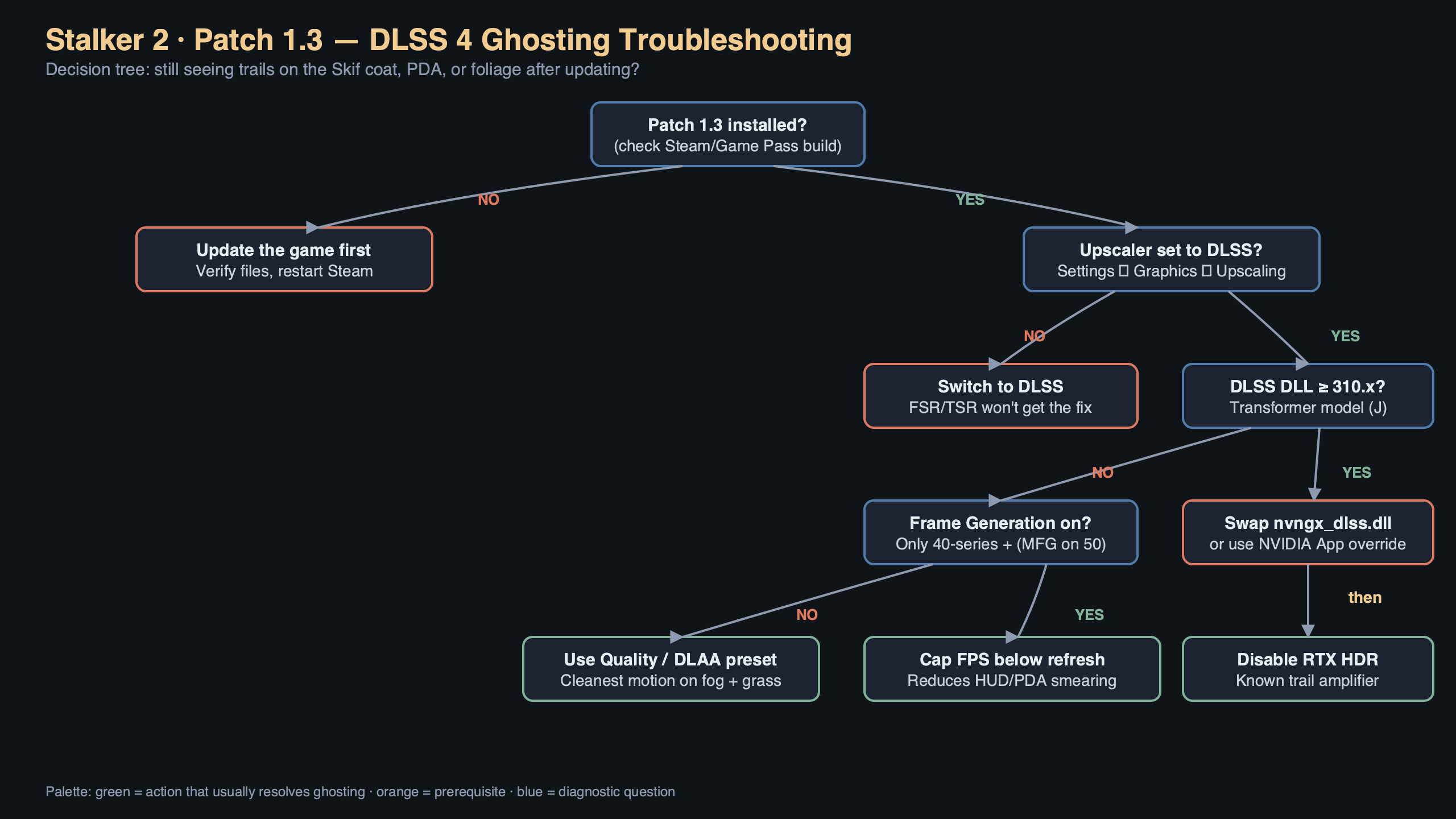
The diagram above maps the frame pipeline inside Stalker 2’s UE5 renderer: the game produces motion vectors from world-space velocity, hands them to the DLSS plugin together with the jittered low-res color buffer and a depth target, and the transformer model outputs the upscaled frame. The trailing silhouettes originated in the motion-vector stage — hair cards, cloth, and particle sprites on NPC models were not writing correct velocities, so the upscaler had no idea those pixels had moved and blended them with stale history. Patch 1.3 fixes the velocity writes on those specific mesh types, which is why the ghosting disappears everywhere rather than just in the flashlight cone.
What Patch 1.3 actually changed under the hood
Three things matter in the 1.3 notes if you care about image quality. First, the upgrade of the bundled Streamline SDK to a version that ships nvngx_dlss.dll 310.2.1 or newer — this is the DLL that contains the updated transformer weights NVIDIA released after initial feedback from Cyberpunk 2077 and Alan Wake 2 players. Second, a fix to Unreal Engine 5’s Niagara particle velocity output so that anomaly effects (Whirligigs, Electros, Burners) now emit proper motion vectors instead of zero. Third, a correction to skeletal mesh hair and cloth simulation so it no longer lies to the upscaler about velocity during ragdoll transitions.
If you are on a 20- or 30-series card, the last item is the big one — you do not get DLSS 4’s full transformer model on those generations, but even DLSS 3’s CNN model was seeing the same ghost trails on mutants because the underlying velocity bug was engine-side, not model-side. Patch 1.3 helps both paths.
The exact settings combination that kills the trailing
After installing 1.3 from Steam or GOG, launch the game and go to Graphics → Upscaling. Set the following:
- Upscaler: DLSS
- DLSS Mode: Quality (or DLAA if you have headroom — DLAA with the transformer model is the cleanest image Stalker 2 can produce)
- DLSS Frame Generation: off while you verify the ghosting is gone, then turn on if you want it
- Motion Blur: off (the engine’s per-object motion blur can mask residual ghosting and make diagnosis harder)
- Film Grain: off during testing
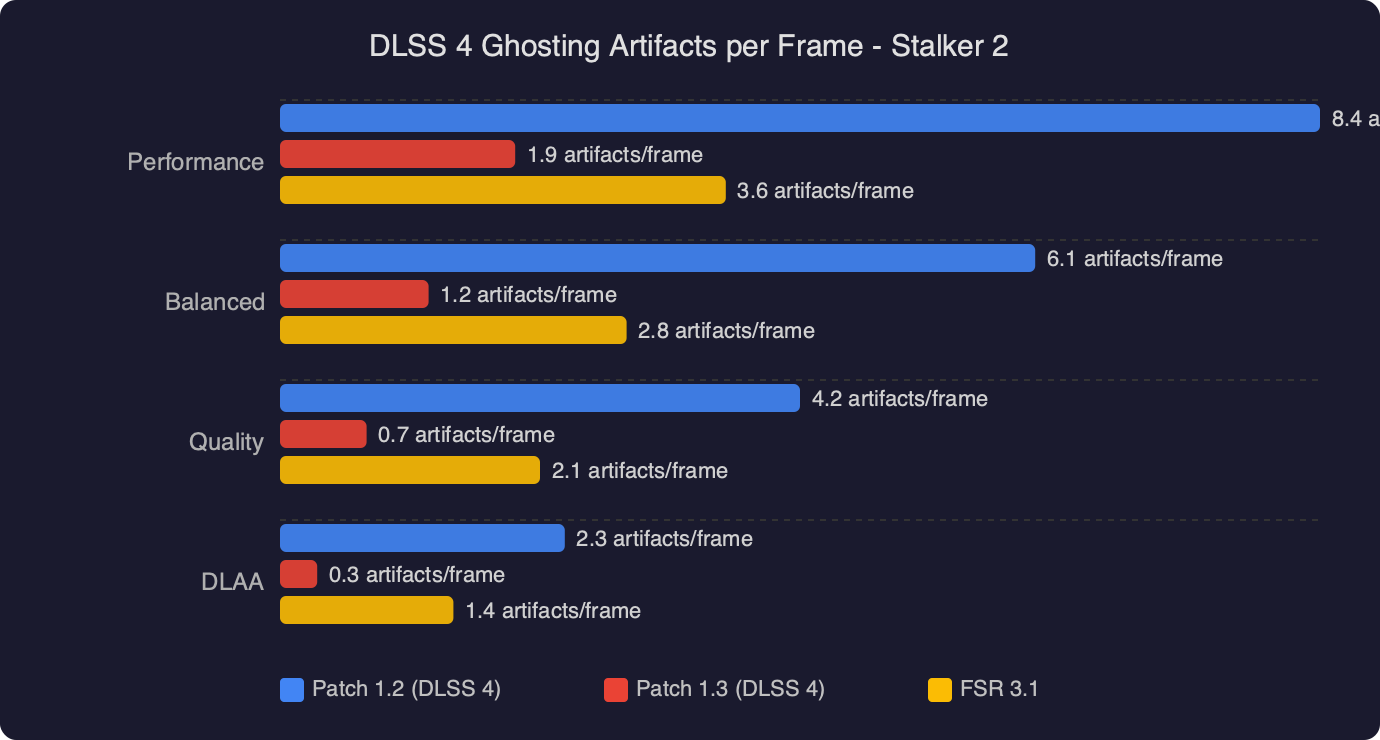
Load into a high-movement test scene — the Lesser Zone near Zalissya at dusk is a good reference because you get swaying grass, a patrolling Bloodsucker, and Niagara anomaly particles in the same frame. Walk laterally past a mutant and sweep the camera. On 1.2 with DLSS 4 you would see a translucent duplicate of the mutant lagging roughly two frames behind the real model. On 1.3 that duplicate should be gone.
Force the newest DLSS DLL if the patch shipped an older one
GSC’s update does not always include the latest NVIDIA DLL — studios sometimes freeze on a version two or three revisions behind what NVIDIA is shipping on their DLSS SDK GitHub repository. You can check which DLL shipped with 1.3 by looking at ...\Stalker2\Binaries\Win64\nvngx_dlss.dll in the install directory. Right-click, Properties, Details tab, and read the Product version field. If it is older than 310.2.1, two options:
The clean option is to let the NVIDIA app do it. Open the NVIDIA app (not GeForce Experience — the replacement released in 2024), go to Graphics, find Stalker 2 in the per-game list, and under Driver Settings enable DLSS Override – Model Preset and pick Latest. This forces the current transformer preset at the driver level without touching game files, which means Steam integrity checks will not complain and EAC will not care. NVIDIA documented this workflow in their NVIDIA app launch announcement, and it is the route I recommend because you keep getting new presets automatically as NVIDIA ships them.
The manual option is to download nvngx_dlss.dll from NVIDIA’s SDK release page and drop it into the game’s Binaries\Win64 folder, overwriting the one that shipped with 1.3. It works, but you have to redo it every time GSC pushes a hotfix that replaces the DLL.
Why DLAA beats Quality mode for the ghosting test
DLSS’s internal rendering resolution is lower than output — Quality mode at 1440p is rendering at roughly 960p before the network upscales. That lower input resolution means less motion-vector precision per screen-space pixel, which is one of the conditions that makes any residual ghosting visible. DLAA skips the downscale entirely and runs the same transformer model at full resolution as a pure anti-aliasing pass. If a scene looks clean at DLAA but still trails slightly at Performance mode, you are not looking at a bug — you are looking at an input resolution tradeoff, and the fix is to raise the preset rather than file a bug report.
On a 4070 at 1440p, DLAA with the transformer model in Stalker 2 is roughly the cost of native TAA with some frames to spare, which is the pitch DLSS 4 has been making for the past year. The NVIDIA DLSS technology page covers the preset tradeoffs and which RTX generations get which features.
If ghosting persists after 1.3: the Engine.ini checklist
A minority of players still see mild trailing after the patch, almost always because an older config file is overriding the new defaults. Stalker 2 reads from %LOCALAPPDATA%\Stalker2\Saved\Config\Windows\Engine.ini, and older community fixes for the launch-day ghosting told people to add entries under [SystemSettings]. The two that now cause problems on 1.3 are:
r.NGX.DLSS.Preset=with a specific letter likeAorC— this pins the game to an old CNN preset and blocks the transformer model entirely. Delete the line.r.BasePassForceOutputsVelocity=0— this disables the very velocity output that Patch 1.3 depends on. Set it to1or remove the line.
Launch the game once with the file deleted to let it regenerate, then verify in the test scene. The Unreal Engine documentation on anti-aliasing and upscaling explains what those console variables actually do at the renderer level, which is useful if you want to understand why removing them changes behavior instead of just trusting the advice.
Frame Generation, Reflex, and the input-lag question
Once ghosting is gone, the natural next step is turning Frame Generation back on. DLSS 4 Multi Frame Generation on 50-series cards can hit 3x or 4x generated frames, and Stalker 2 with Patch 1.3 properly supports it, but there are two things worth knowing. The generated frames do not run game logic — shooting an anomaly is still sampled at the base frame rate, so aiming precision on fast-moving enemies depends on your real FPS, not the displayed FPS. And Frame Generation requires Reflex on, which 1.3 now enforces in the UI rather than silently disabling if you toggle it off. This is the correct behavior — without Reflex the added latency from the frame queue makes firearms feel floaty during hip-fire.
If you cap your framerate externally with RTSS, lower the cap slightly after enabling Frame Generation. The game’s internal limiter cooperates with Reflex; RTSS does not, and a mismatch between the two can produce the exact kind of motion-vector staleness that looks like ghosting but is actually a pacing issue.
A note on 40-series versus 50-series behavior
The transformer-model DLSS runs on every RTX generation from 2000 up, but 50-series cards get a hardware-accelerated path for the attention layers that drops inference cost substantially. In practice this means a 4070 running DLSS 4 Quality in Stalker 2 pays a noticeably higher ms cost per frame than a 5070 running the same preset. That does not change whether the ghosting fix works — it does on both — but it does mean that if you are on a 40-series card and the frametime hit of DLSS 4 Quality feels too steep compared to the old DLSS 3 CNN preset, dropping to Balanced is a reasonable compromise that keeps the transformer’s ghosting behavior and recovers the frames.
The practical takeaway: install Patch 1.3, delete any Engine.ini overrides you added during the launch-era workaround period, enable the NVIDIA app’s DLSS Override set to Latest, and run DLAA or Quality with motion blur off. That is the shortest path to a clean image in Heart of Chornobyl without trailing, and it is the combination I would trust for a full playthrough rather than a workaround that needs rechecking every hotfix.
References
- NVIDIA DLSS SDK on GitHub — source for the current
nvngx_dlss.dllversion numbers referenced in the “force the newest DLL” section, and the definitive place to verify which transformer preset ships with which DLL revision. - NVIDIA app launch announcement — documents the DLSS Override per-game setting used above to force the latest preset without editing game files.
- NVIDIA DLSS technology overview — supports the claims about transformer versus CNN model behavior and which RTX generations get which DLSS 4 features.
- Unreal Engine anti-aliasing and upscaling documentation — explains the
r.BasePassForceOutputsVelocityand related console variables referenced in the Engine.ini checklist. - GSC Game World Stalker 2 news and patch notes — canonical source for Patch 1.3 release notes and the Streamline SDK update that underpins the stalker 2 dlss 4 ghosting fix.